Update: Zoom migration has been scheduled for Monday, Jan. 26.
On Jan. 26, from 5-10 P.M., the IT Unified Communications team will migrate the UC Davis Health Zoom account over to the health environment. Beginning on Jan. 27, all migrated users will use their @health.ucdavis.edu email address to log into Zoom. Your Single Sign-On (SSO) password will remain the same after the migration.
Additionally, there will be a support call available on Tuesday, Jan. 27, from 7-10 A.M. (link below).
Steps to take:
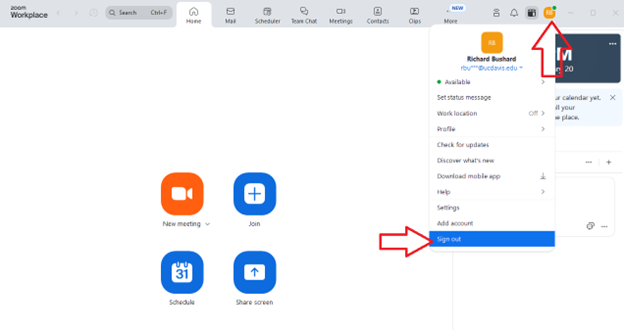
Please sign out of Zoom before 5 P.M. on Jan. 26.
Migrated (health) users
Users who have migrated to the new health environment will now be able to log into Zoom using their health email address.
Login: username@health.ucdavis.edu
Password: remains the same as before
If you need help logging in after the migration:
Join the support call: Tuesday, Jan. 27, from 7-10 A.M.
Call the Technology Operations Center: 916-734-HELP (4357)
Non-migrated (campus) users
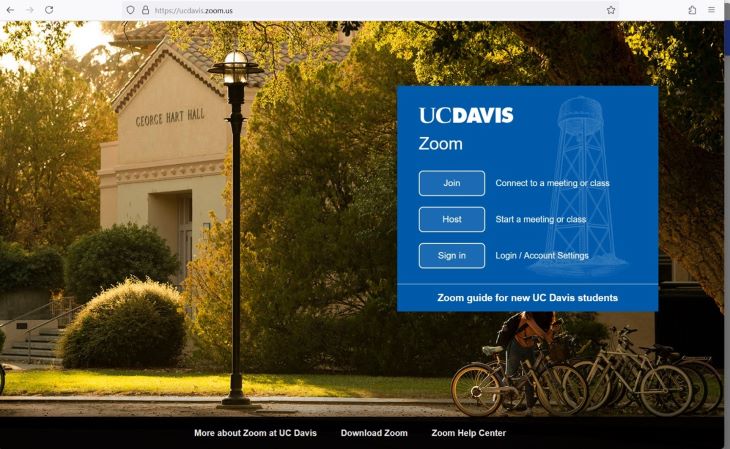
Users who have not migrated (and will not) will need to recreate an account on the campus Zoom environment to continue using Zoom. Non-migrated users willnotbe able to log into the health Zoom environment with their campus credentials. Here are the steps to take to obtain your campus Zoom account:
After you log in, you will get a notice that states “You are signing into a Zoom account that is different from your current one”. Click theswitch to the new account link.